Intune Installation
Before you begin, ensure you have downloaded the Cyberhaven Sensor for macOS and the Cyberhaven.mobileconfig MDM profile from the Console.
-
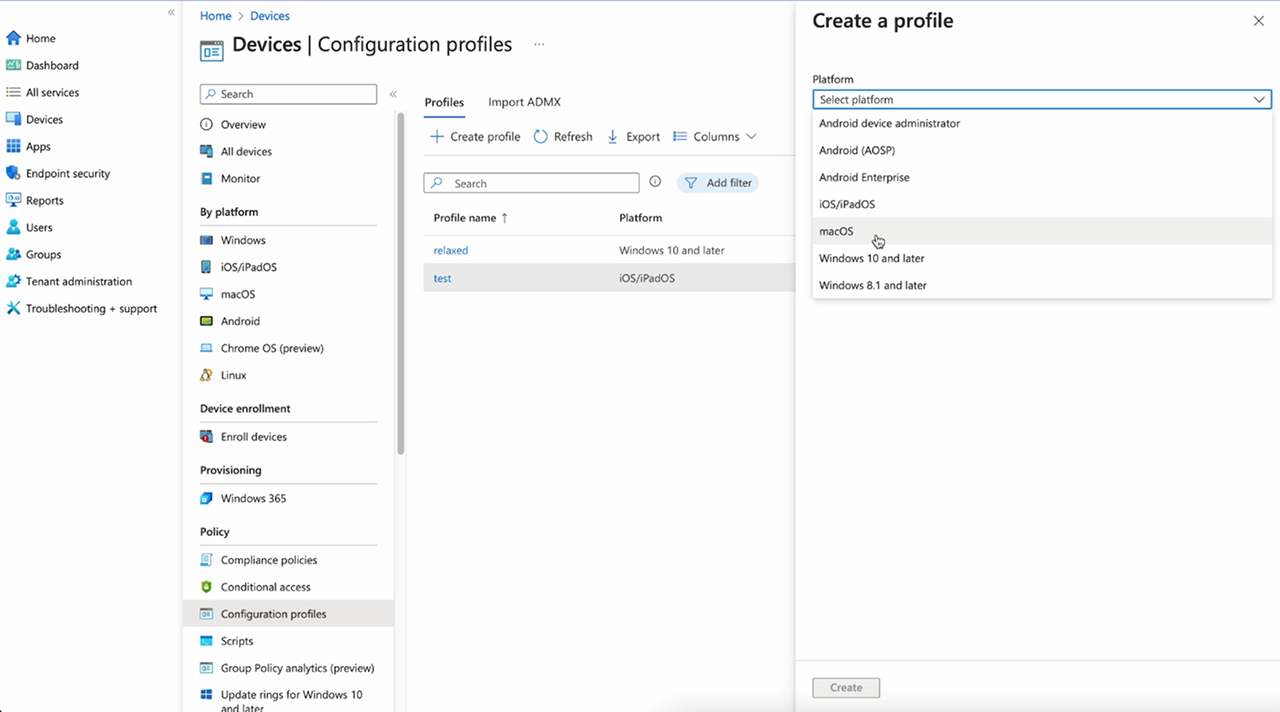
In Intune, navigate to Devices > Configuration Profiles.
-
Click on Create profile and select macOS as the platform.
-
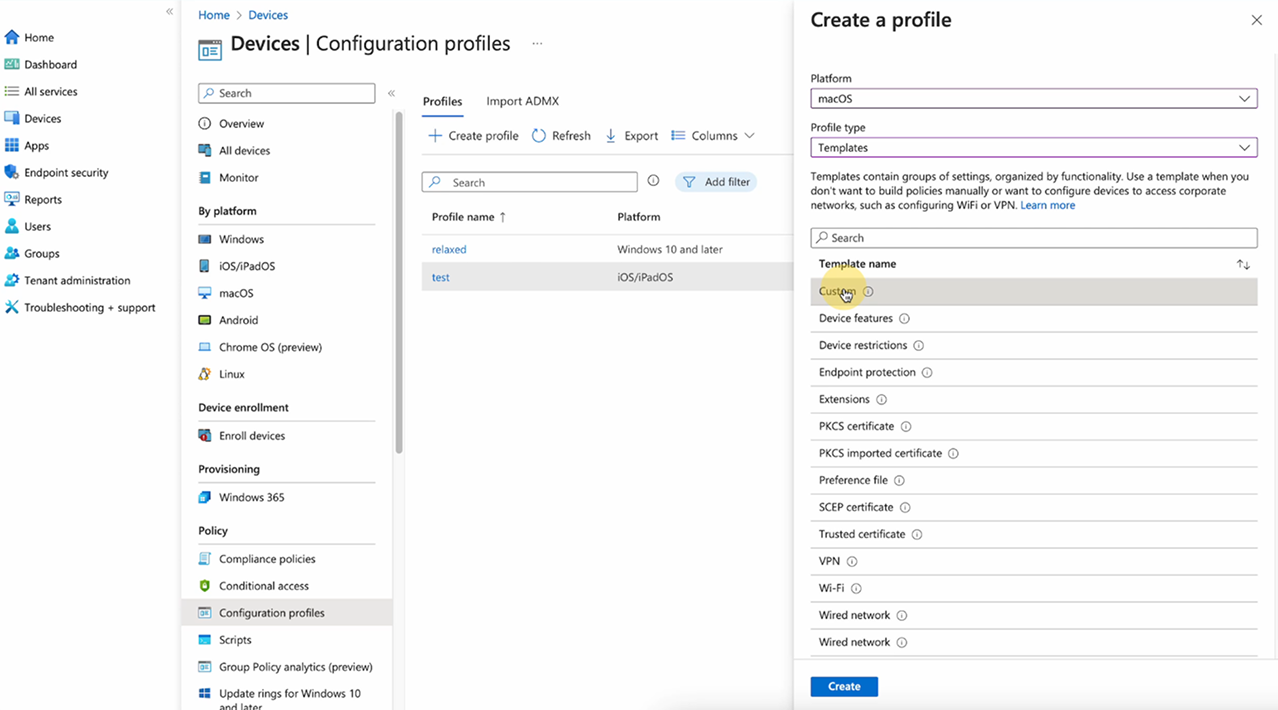
Select the user profile type as Templates and then select Custom template.
-
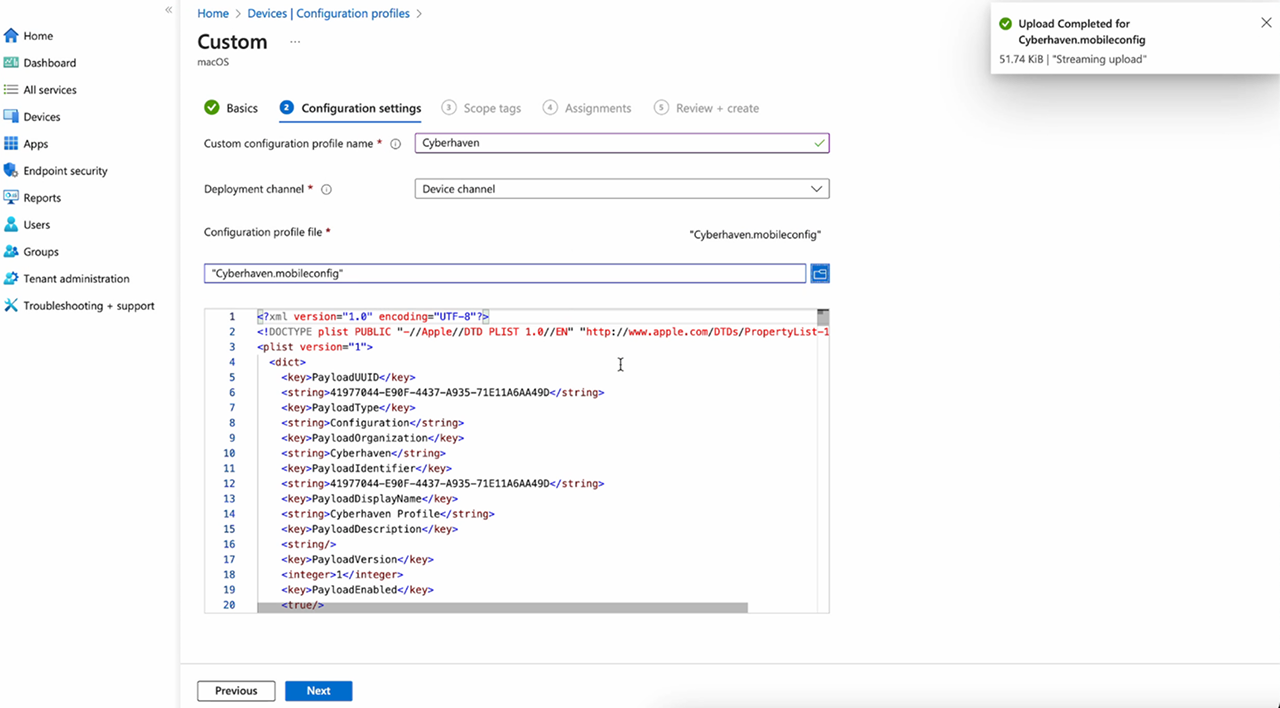
Configure the custom template.
4.1. Enter a template name, such as Cyberhaven. Click Next.
4.2. In the Configuration settings tab, enter the configuration profile name as Cyberhaven, the same as the template name.
4.3. Select the deployment channel as Device channel.
4.4. Upload the
Cyberhaven.mobileconfigfile you downloaded from the Cyberhaven Console. Click Next.4.5. Scope tags are not required. Click Next.
4.6. On the Assignments tab, select the device group to which you will deploy the Cyberhaven Sensor. Click Next.
4.7. Review your configuration and click Create.
-
Click on Apps in the left navigation bar and select macOS.
-
Click Add and select Line-of-business app.
-
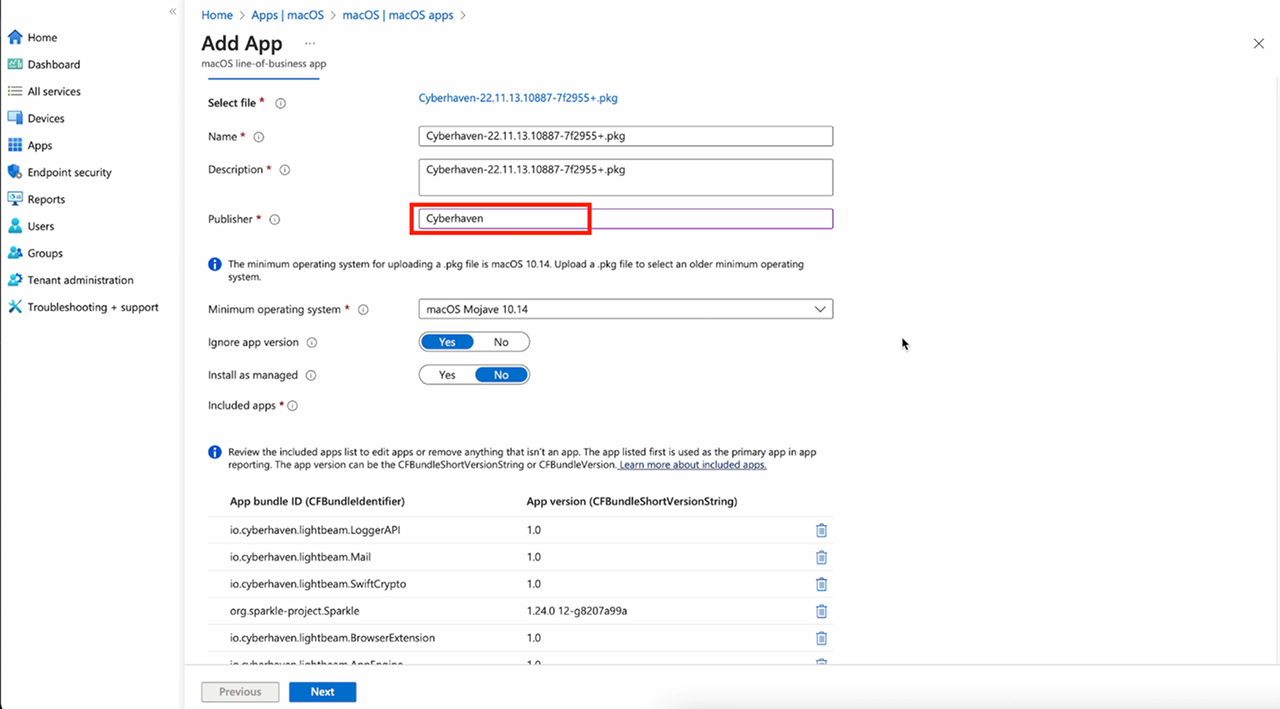
In the Add App window, click Select the app package file and upload the macOS Sensor package you downloaded from the Cyberhaven Console.
-
Enter the published name as Cyberhaven. Click Next.
-
Click Next on Scope tags.
-
In the Assignments window, select the users to whom you will be deploying the Cyberhaven Sensor. Click Next.
-
Review your app configuration and click Create.
Known Issue: VPN Configuration Prompt
Some MDM solutions may prompt for a VPN hostname when uploading the Cyberhaven MDM profile (version 2.0.8 or later), due to the inclusion of inline proxy support for Microsoft Teams traffic inspection. If prompted, enter 127.0.0.1 as the VPN hostname to proceed with the upload. For details about Microsoft Teams support, see Microsoft Teams Support with Windows and macOS Sensors